


Are you running out of storage on your SQL Server data and transaction log drives? Do you think the used space on your database disks is way more than what it should be? Not sure where the storage is being wasted?
Stop! don’t just go and get additional storage added to your SQL Server machine. Take a step back and see if there are any unused and unwanted files sitting on your data and log drives that need deleting. You’d be surprised – you might end up recovering several gigabytes or even terabytes of storage by deleting unwanted junk from your database drives.
SQL Servers, especially those that have been installed and in use for several years, slowly accumulate lot of unwanted junk files on the data and transaction log drives. In some cases, the DBAs are to blame – they are not careful about cleaning up after themselves after working on a migration, database move, or after leaving behind an ad hoc backup that’s only needed for a day.
What is this junk on the database drives?
- Old database and transaction log files that were used during database moves, migrations and copies, but were not cleaned up after the activity.
- DBAs taking ad hoc backups to the wrong drives with the intention of deleting them after whatever they were doing, but forgetting to do so.
- MOST IMPORTANT and UNEXPECTED REASON: Did you know, when you drop a database that is in OFFLINE state, SQL Server does not delete the files from the filesystem. Yes, shocking – but true. You could drop a 10 TB database after offlining it, and SQL Server won’t delete those files from the disk. This is by design, and documented by Microsoft. Always be mindful of this hidden ‘feature’ and remember to delete the files at the Operating Sytem (OS) level, after dropping an offline database.
What do you gain by cleaning up this junk? is it worth it?
- Oh yes, its definitely worth cleaning up your data drives every once in a while. The most obvious benefit is that you save on your storage costs by freeing up the space occupied by the junk.
- Any file system backups will complete faster and quicker, as they have less stuff to backup.
- Disk copies during activities like disk cloning or server moves complete quicker, as don’t have to copy the unnecessary files.
How do you go about cleaning up your database drives?
Most organisations that run dedicated SQL Server hosts usually have separate disks for storing database files, transaction log files, tempdb files and backups.
I have come up with a script that gathers a list of all the files and folders on these designated data/log drives, and matches it up with the list of actual database files hosted by SQL Server. It highlights any files on the disk, that do not belong to the SQL Server databases. You can then review that list and decide what to do with it. The script even looks at any subfolders recursively. As an added convenience, the script outputs the necessary delete commands for each file and folder in three different flavours – delete via xp_cmdshell, delete from the command prompt of the server, or delete via PowerShell – take your pick!
The script excludes any system database files like model_msdbdata.mdf, model_msdblog.ldf, model_replicatedmaster.ldf, model_replicatedmaster.mdf – and also system certificates like MS_AgentSigningCertificate^.cer
Here’s the script:
SET NOCOUNT ON

--Created by: Vyas Kondreddi
--https://dutydba.com

--Table variable for storing known file paths
DECLARE @KnownPaths table (KnownPath nvarchar(1024) NOT NULL)

--Table variable for storing known database and transaction log files with path
DECLARE @FilesFromKnownPaths table
(
	KnownPath nvarchar(1024),
	KnownFileName nvarchar(1024),
	FileWithPath AS (KnownPath + KnownFileName),
	SizeMB numeric(15,2),
	SizeGB AS (CAST(SizeMB/1024. AS numeric(15, 2))),
	FileOrFolder varchar(6)
)

--Table variables for storing file sizes returned by PowerShell/DOS command
DECLARE @FileSizes table (FileSize nvarchar(1024))

DECLARE @Path nvarchar(1024) = '', @CMD nvarchar(2048), @FileWithPath nvarchar(2048) = ''

--Gathering default SQL Server data and transaction log folders
--and also the non-default folders that currently have database and transaction log files
INSERT INTO @KnownPaths (KnownPath)
SELECT CAST(SERVERPROPERTY('InstanceDefaultDataPath') AS nvarchar(1024))
UNION
SELECT CAST(SERVERPROPERTY('InstanceDefaultLogPath') AS nvarchar(1024))
UNION
SELECT	DISTINCT
		REPLACE(LEFT(physical_name, LEN(physical_name) - CHARINDEX('\', REVERSE(physical_name)) + 1) , '\\', '\')
FROM	sys.master_files
WHERE	type IN (0, 1) --database and transaction log files

--Loop through each known folder and gather the file list
WHILE @Path IS NOT NULL
BEGIN
	SET @Path =
	(
		SELECT	MIN(KnownPath)
		FROM	@KnownPaths
		WHERE	KnownPath > @Path
	)

	IF @Path IS NULL BREAK
	--Gather files only
	SET @CMD = 'dir ' + @Path + '/b /s /a:-d'
	INSERT INTO @FilesFromKnownPaths (KnownFileName)
	EXEC master..xp_cmdshell @CMD

	--Clean up the file list and avoid deleting any system files and certificates
	DELETE @FilesFromKnownPaths
	WHERE
		KnownFileName IS NULL
		OR KnownFileName LIKE '%\model_msdbdata.mdf'
		OR KnownFileName LIKE '%\model_msdblog.ldf'
		OR KnownFileName LIKE '%\model_replicatedmaster.[lm]df'
		OR KnownFileName LIKE '%\MS_AgentSigningCertificate%.cer' --These are default SQL certificate files
	UPDATE @FilesFromKnownPaths SET KnownFileName = REPLACE(KnownFileName, @Path, '')
	UPDATE @FilesFromKnownPaths SET KnownPath = @Path, FileOrFolder = 'File' WHERE KnownPath IS NULL

	--Gather folders only
	SET @CMD = 'dir ' + @Path + '/b /s /a:d'
	INSERT INTO @FilesFromKnownPaths (KnownFileName)
	EXEC master..xp_cmdshell @CMD
	DELETE @FilesFromKnownPaths WHERE KnownFileName IS NULL
	UPDATE @FilesFromKnownPaths SET KnownFileName = REPLACE(KnownFileName, @Path, '')
	UPDATE @FilesFromKnownPaths SET KnownPath = @Path, FileOrFolder = 'Folder' WHERE KnownPath IS NULL
END

--Updating data to handle for subfolders
UPDATE @FilesFromKnownPaths
SET KnownPath = KnownPath + LEFT(KnownFileName, LEN(KnownFileName) - CHARINDEX('\', REVERSE(KnownFileName))+1)
WHERE KnownFileName LIKE '%\%'

--Updating data to handle for subfolders
UPDATE @FilesFromKnownPaths
SET KnownFileName = STUFF(KnownFileName, 1, LEN(LEFT(KnownFileName, LEN(KnownFileName) - CHARINDEX('\', REVERSE(KnownFileName))+1)), '')
WHERE KnownFileName LIKE '%\%'

--Remove all files that can be accounted for by sys.master_files
--so that we only worry about files that are unaccounted for
DELETE @FilesFromKnownPaths
FROM
	@FilesFromKnownPaths AS f
	INNER JOIN
	sys.master_files AS m
	ON REPLACE(m.physical_name, '\\', '\') = f.FileWithPath

--Get the sizes of all files by looping through the list
WHILE @FileWithPath IS NOT NULL
BEGIN
	SET @FileWithPath =
	(
		SELECT	MIN(FileWithPath)
		FROM	@FilesFromKnownPaths
		WHERE	FileWithPath > @FileWithPath
	)

	IF @FileWithPath IS NULL BREAK

	--SET @CMD = 'PowerShell.exe -Command "(Get-Item "' + @FileWithPath + '").Length"'
	SET @CMD = 'for %I in ("' + @FileWithPath + '") do @echo %~zI'

	DELETE @FileSizes

	INSERT INTO @FileSizes(FileSize)
	EXEC master..xp_cmdshell @CMD

	DELETE @FileSizes WHERE FileSize IS NULL

	UPDATE @FilesFromKnownPaths SET SizeMB = (SELECT CAST(FileSize AS bigint) FROM @FileSizes)/1024/1024. WHERE FileWithPath = @FileWithPath
END

--No action needed on folders that have genuine database or log files
DELETE @FilesFromKnownPaths
FROM @FilesFromKnownPaths AS FP
WHERE CASE WHEN RIGHT(FileWithPath, 1) <> '\' THEN FileWithPath + '\' ELSE FileWithPath END IN
(
	SELECT KnownPath FROM @KnownPaths
)

--List out those files that do not belong to any database
SELECT DISTINCT
	f.FileWithPath AS FilesForCleanup,
	f.FileOrFolder,
	f.SizeMB,
	f.SizeGB,
	'EXEC master..xp_cmdshell ''' + CASE FileOrFolder WHEN 'File' THEN 'del ' ELSE 'rd ' END + QUOTENAME(f.FileWithPath, '"') + '''' AS ToDeleteFromSQL,
	CASE FileOrFolder WHEN 'File' THEN 'del ' ELSE 'rd ' END + QUOTENAME(f.FileWithPath, '"') AS ToDeleteFromCommandPrompt,
	'Remove-Item ' + QUOTENAME(f.FileWithPath, '"') AS ToDeleteFromPowerShell
FROM
	@FilesFromKnownPaths AS f
ORDER BY f.FileWithPath

SELECT
	COALESCE(KnownPath COLLATE Latin1_General_CI_AS, 'Grand Total') AS KnownPath,
	SUM(SizeMB) AS TotalFileSizeMB,
	SUM(SizeGB) AS TotalFileSizeGB
FROM (SELECT DISTINCT * FROM @FilesFromKnownPaths) AS x
GROUP BY ROLLUP (KnownPath COLLATE Latin1_General_CI_AS)Just run the script, and it will list out all the files that can be deleted from your data and transaction log drives. Don’t worry, it won’t delete any files. It will only list the files, and provide you with commands for deleting those files via xp_cmdshell, or from command prompt or PowerShell.
Sample output:
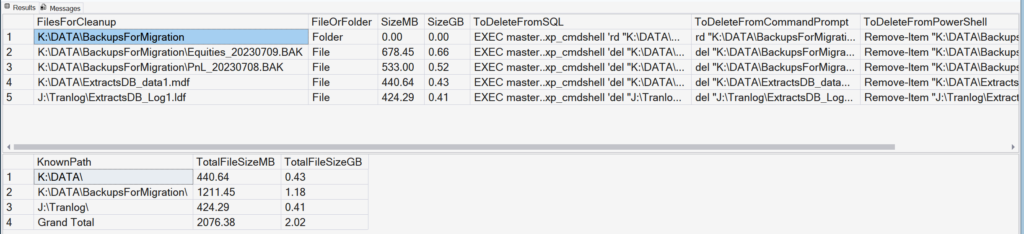
Now all you got to do is, review the output, decide which files to go ahead and delete. You can also see the amount of storage that would be freed up by removing those files. File and folder sizes are displayed in both MB and GB.
When you are ready to delete the files and folders, simply copy the commands displayed in the output and run them.
Note: First delete all the files, before deleting the folders. If there are nested folders, delete the child folders first before deleting the parent folders.
Hope you find this script useful! Would be interested to see how much space you have recovered by targeting these unnecessary files – please leave a comment and let me know.
