


You can use the Database Mail feature of SQL Server to send emails. Thesse can be ad hoc emails, or could be sent from within your scripts and stored procedures, programmatically. You could even set up jobs that monitor specific scenarios and and send emails to DBAs or users based on a certain condtion being met. For example, you could have a job that emails out the DBAs when a database crosses 75% space utilisation.
You do need an SMTP server though to be able to use this feature. Most enterprises and organisations have their own SMTP servers and its not a problem in this case to configure Database Mail.
What if you wanted this email functionality on your own SQL Server, running on your laptop, for persnal use? In this case you need your own SMTP server – but is it really practical to go through the hassle to have your own SMTP server running, for the sake of the odd email once in a while? No.
Last Christmas, five of my friends’ families decided to play the Secret Santa game. We all live in different cities, and it’s not practical for us all to get together and pick chits out of a jar to find out who is buying a gift for whom. I wrote a little SQL script that randomly picks a Secret Santa gift recipient for each family member, and let’s them know by email. As this is clearly a personal project, I needed my own SMTP server and I didn’t want to go through the hassle of setting one up for this one off requirement.
I looked around and found various online SMTP services, some free, some paid. I wanted a free service, as this is a one off or once a year requirement for me. After a bit of research I’d decided to go with Brevo.com which offered a free tier SMTP service, with 300 emails a day. They did not even ask for a credit card. Perfect!
How to configure SQL Server Database Mail using the SMTP service from Brevo?
I am going to walk you through the steps for configuring SQL Server Database Mail, using the SMTP email service from Brevo.
- First go to Brevo.com and sign up for their free email service.
- Connect to your SQL Server using Management Studio
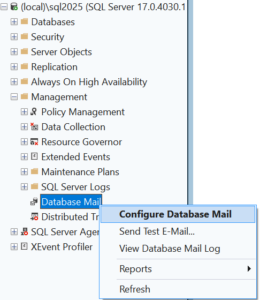
- Under the “Management” section, right click on “Database Mail” and select “Configure Database Mail”
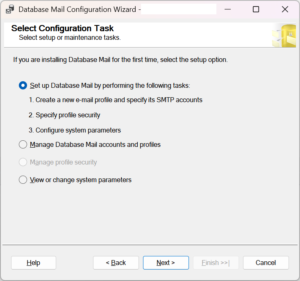
- Tick the Radio button “Set up Daabase Mail by performing the following tasks:
- Youll now be presented with a dialogue box “The database Mail feature is not available. Would you like to enable the feature?” Click “Yes”
- You’ll now be shown the “New Profile” dialogue box. Enter a profile name, and profile description of your choice, as shown beolw:
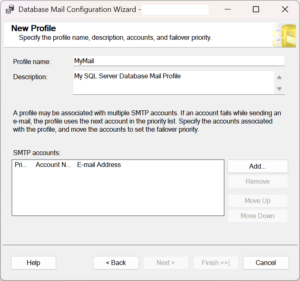
- Click on the “Add…” button to add your Brevo SMTP account
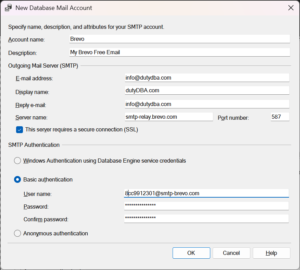
To complete this screen, you’d need the SMTP server name, port number, user name and password from Brevo.
Log into your Brevo account, and find “SMTP & API” section under your “Profile” > “Settings”
The “SMTP & API” sectoin has all the details you need under the “SMTP” tab. The “SMTP Key” is your password. Click on the “Generate a new SMTP Key” button, if a key is not already there.
Use the generated SMTP key as your password
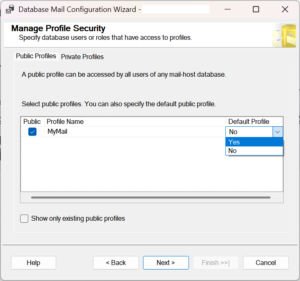
- Click OK, and click Next. This will take you to the below “Manage Profile Security” screen. I have decided to make this a Public profile on my laptop and also marked it as a Default Profile on my SQL Server.
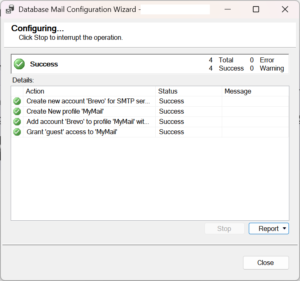
- Click Next. This will take you to “Configure System Parameters” screen. I chose to go with the default configuration options. Click Next again and then click Finish. All being well, you should see successful configuration screen as shown below:
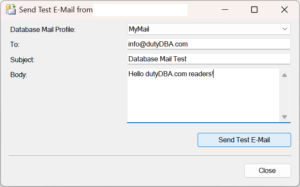
- You can now right click on the “Database Mail” in Management Studio and select “Send Test E-Mail” option, to send a test email to make sure your configuration is correct and that you are able to send email successfully. Type in the “To” email address, change/add “Subject” and “Body” as appropriate, and click the “Send Test E-Mail” button. You should shortly get this email if you configured Database Mail correctly.
In case the test email fails to arrive, look in the Database Mail log, as well as the “Email Logs” section within your Brevo profile for related error messages.
Here’s a quick example for sending email via SQL Server Database Mail, using T-SQL code:
EXEC msdb.dbo.sp_send_dbmail
	@profile_name = 'MyMail',
	@recipients = 'hello@dutyDBA.com',
	@body = 'Hello dutyDBA.com readers!',
@subject = 'Database Mail Test'That’s it for now, enjoy!
