


Quite often, I get approached by Windows SAs or system administrators in my organisation, saying that my SQL Server host is using too much memory (almost 100%), and that I should do something about it.
Whilst high memory usage is quite common on a dedicated SQL Server machine, I cannot blame the system admins for complaining – after all, their monitoring software is telling them that the SQL host is using too much memory. As evidence, they send me this helpful screenshot as well:
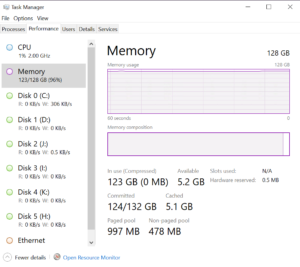
Sure, the screenshot looks bad. According to the memory chart, SQL Server is hogging all the memory.
But, is that a problem? No. On dedicated SQL Server hosts (the server’s sole purpose is to run SQL Server), it is normal for Database Administrators (DBAs) to reserve a large chunk of the available memory (RAM) for SQL Server. SQL Server uses this memory to cache as much data as it can in the server memory. When a user queries for data, it retrieves the data straight from memory, than reading from disk. I’m sure you agree, reading from memory is faster than from disk!
How does SQL Server use its memory (in layman’s terms):
The main point that non-DBAs must grasp is that SQL Server is used for storing and retrieving data, and vast amounts of it. The more data SQL Server can cache within its buffer pool (memory/RAM), the better the performance for users – because its much quicker to fetch data from within memory – disk reads are slow and expensive.
SQL Server has two main configuration options, that can be controlled using the system stored procedure sp_configure:
- min server memory (MB)
- max server memory (MB)
DBAs adjust these two parameters to control the minimum and maximum memory SQL Server can reserve for its bufferpool. DBAs take various things into consideration when allocating the min and max server memory – like, how much RAM the host has, are there any other processes that SQL Server is sharing the server memory with, are there multiple instances of SQL Server etc.
When the server starts, and users start querying the data, SQL Server keeps reading data from disk, and caches the data in the buffer pool. When the buffer pool reaches the size specified by “min server memory (MB)” parameter, SQL Server keeps hold of that memory, as that is the minimum configured by the DBA.
SQL Server then keeps reading more and more data into its buffer pool as more queries get executed. When the buffer pool size reaches the size specified by “max server memory (MB)” parameter, SQL Server stops grabbing more memory for buffer pool. SQL Server is a well behaved citizen and if it senses external memory pressure by other applications or Operating System (OS) on the host, it releases memory, whilst keeping hold of the configured minimum amount.
Different organisations have different standards for configuring the “max server memory (MB)” parameter. Some DBAs allow SQL Server to go up to 90% of the RAM, some go up to 75%. Some DBAs use a formula to come up with the right amount of RAM for “max server memory (MB)” parameter.
Bottom line – is it good or bad to see high memory utilisation on SQL boxes?
In most cases, its a good thing – it just means that SQL Server is making good use of all the memory given to it.
If you are a system administrator or Windows SA responsible for the host, don’t worry too much if you see your SQL Server box is showing high memory utilisation.
The DBAs would know if there is a memory issue. If SQL Server is struggling for memory, DBAs will see ‘out of memory’ errors or other memory related errors in the SQL Server error log, or Windows event logs. There are various SQL Server Dynamic Management Views (DMVs) that the DBAs have access to, which show how SQL Server is doing in terms of memory.
As long as the host is sized with the right amount of RAM for the workload, and the DBA has set the “max server memory (MB)” parameter to a sensible value for the environment, all is well.
