


DBAs often get asked if a particular database is in use, often with a view to dropping any unused databases to save valuable disk space. As a responsible database administrator, you must perform all necessary checks to make absolutely sure, that a database is not in use before dropping it.
Unfortunately SQL Server does not expose a ‘last used timestamp‘ and its up to the DBA to determine if a database is in use or not. You have to combine multiple techniques to determine if a database is being used.
I strongly recomment using all of the below checks to make sure no database is incorrectly determined as unused, and dropped.
See also – in case you are looking for a way to track who is using a table/view/stored procedure etc, check out:
Check 1 – See if there are any active connections to the database:
Run the below code in SQL Server Management Studio. Make sure you are logged in as a sysadmin (which you usually are, of you are a DBA) or with an account that has VIEW SERVER STATE or VIEW SERVER PERFORMANCE STATE permission in case of SQL Server 2022 (16.x) and later.
In the first line of the code, replace ‘Invoicer’ with the name of your database.
DECLARE @DBName sysname = 'Invoicer'

SELECT
	session_id,
	login_time,
	host_name,
	program_name,
	login_name,
	status
FROM
	sys.dm_exec_sessions
WHERE
	database_id = DB_ID(@DBName)
	--Ecclude your own session from the output
	AND (session_id <> @@SPID)
GOIf the above query returns any rows, then it means that there are some active connections to the database. In this case, investigate those current connections before deciding whether this database is in use or not. The output would look like below if there are any active connections:

Note: This is only a quick check to see if there are any current connections into the database. There could be other users or applications connecting to this database at other times but are not currently connected.
Check 2 – Query sys.dm_db_index_usage_stats to see the last read/write dates on tables:
The Dynamic Management View (DMV) sys.dm_db_index_usage_stats returns counts of different types of index operations like reads and writes along with the time each of those operation was last performed. We could use this DMV to identify the most recent read and write times across all tables in the database. As with Check 1 above, you would either run this as a sysadmin or using a login with VIEW SERVER STATE or VIEW SERVER PERFORMANCE STATE permission in case of SQL Server 2022 (16.x) and later.
In the first line of the code, replace ‘Invoicer’ with the name of your database.
DECLARE @DBName sysname = 'Invoicer';

WITH UsageStatsCTE (ObjectName, last_user_lookup, last_user_scan, last_user_seek, last_user_update) AS
(
    SELECT
		QUOTENAME(OBJECT_SCHEMA_NAME(object_id)) + '.' + QUOTENAME(OBJECT_NAME(object_id)) AS ObjectName,
		last_user_lookup,
		last_user_scan,
		last_user_seek,
		last_user_update
    FROM sys.dm_db_index_usage_stats
    WHERE database_id = DB_ID(@DBName)
)
SELECT * FROM
(
	SELECT TOP 1
		ObjectName, 'last_user_lookup' AS OperationType, last_user_lookup AS LastOperationDate
	FROM UsageStatsCTE
	ORDER BY last_user_lookup DESC
) AS last_user_lookup
UNION ALL
SELECT * FROM
(
	SELECT TOP 1
		ObjectName, 'last_user_scan' AS OperationType, last_user_scan AS LastOperationDate
	FROM UsageStatsCTE
	ORDER BY last_user_scan DESC
) AS last_user_scan
UNION ALL
SELECT * FROM
(
	SELECT TOP 1
		ObjectName, 'last_user_seek' AS OperationType, last_user_seek AS LastOperationDate
	FROM UsageStatsCTE
	ORDER BY last_user_seek DESC
) AS last_user_seek
UNION ALL
SELECT * FROM
(
	SELECT TOP 1
		ObjectName, 'last_user_update' AS OperationType, last_user_update AS LastOperationDate
	FROM UsageStatsCTE
	ORDER BY last_user_update DESC
) AS last_user_update
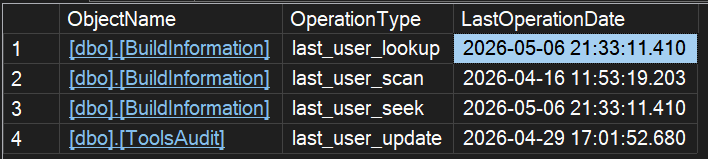
GOThe output would show the most recent occurence of each of the following: user lookup, user scan, user seek, user update of a table or index. If any of those timestamps are more recent, then it would indicate that the database is in use and is being queried and/or updated. Example output below:
Note: Contents of the DMV sys.dm_db_index_usage_stats are initialized to empty whenever the database engine is started/restarted. You cannot completely rely on this DMV if your SQL Server has been recently restarted.
Check 3 – Query sys.dm_exec_query_stats to see if there are any recent query plans
The DMV sys.dm_exec_query_stats stores the performance and execution statistics for currently cached query plans in SQL Server. The idea is to query this DMV to see if there have been any new execution plans generated recently, and if any of those plans have been executed recently. Any recent timestamps in the output would indicate recent user activity in the database. As with Check 1 and 2 above, you would either run this as a sysadmin or using a login with VIEW SERVER STATE or VIEW SERVER PERFORMANCE STATE permission in case of SQL Server 2022 (16.x) and later.
In the first line of the code, replace ‘Invoicer’ with the name of your database.
DECLARE @DBName sysname = 'Invoicer'

SELECT
    qs.creation_time,
    qs.last_execution_time,
    qs.execution_count,
    SUBSTRING
    (
        sh.[text],
        (qs.statement_start_offset/2) + 1,
        (
            (
                CASE statement_end_offset
                    WHEN -1 THEN DATALENGTH(sh.text)
                    ELSE qs.statement_end_offset
                END - qs.statement_start_offset
            )/2
        ) + 1
    ) AS SQLStatement,
  sh.text AS FullSQLCommand
FROM
    sys.dm_exec_query_stats AS qs
    CROSS APPLY
    sys.dm_exec_sql_text(qs.sql_handle) AS sh
WHERE sh.dbid = DB_ID(@DBName)
ORDER BY qs.last_execution_time DESC
GOAs you can see from the screenshow below, the output would show the query plan creation time, the last execution time and execution count for that query plan. It also shows you the full SQL command, as well as the actual line of SQL text.

Note: Rows from the DMV sys.dm_exec_query_stats get removed when the corresponding query plans get aged out from the plan cache. The contents also get removed following a server restart and also when the procedure cache is cleared by a DBA using DBCC FREEPROCCACHE
OK! You’ve determined the database is not in use. What next?
Here are some steps a good DBA usually follows before finally going ahead with dropping an unused database:
- I did highlight some caveats in all of the above checks. To be doubly sure your database is not being used, consider tracing your database using SQL Server Profiler, or by creating an Extended Events session, to monitor the SQL being executed. You have to filter the trace or extended events session on the database_id to avoid noise.
- Once you are confident the database is not being used, offline the database and see if anything breaks. Consider leaving the database in offline mode for a week or a month, depending on your risk appetite. If nobody complains, then you are good to go with dropping the database. FYI, use the below command to offline the database:
USE master
GO

ALTER DATABASE [Invoicer] SET OFFLINE WITH ROLLBACK IMMEDIATE
GO- Bring your database back online, take a final full backup of it, before dropping. Copy the backup file to a safe location, so you have it handy in case the database is needed again. If your organisation is bound by audit and regulatory requirements (for example, a financial institution), please make sure the backup is stored safely on your long term retention media – like a tape backup.
- Finally, go ahead and drop the database!
Note: Did you know, when you drop a database that is in OFFLINE state, SQL Server does not delete the files from the filesystem. You could drop a 10 TB database after offlining it, and SQL Server won’t delete those files from the disk. This is by design, and documented by Microsoft. Always remember to delete the files at the Operating Sytem (OS) level, after dropping an offline database
