


If you are a DBA responsible for SQL Servers across multiple domains, its likely you are already familiar with the Runas command. Runas lets you open SQL Server Management Studio (SSMS) under the context of different Windows accounts.
Supporting multiple SQL Server environments often means switching between different Windows accounts to access dev, test, UAT and production environments spanning multiple domains. Constantly using Runas to open SSMS in different login contexts means lots of typing and it becomes repetitive.
In this post, I’ll show you how to build a simple menu-driven batch file that lets you launch SQL Server Management Studio (SSMS) under the correct Windows account context with a single keystroke, making it faster, more consistent, and less error-prone for DBAs and developers.
Instructions for customising the batch file for your environment:
I am going to show you an example of the batch file, which gives you a menu that offers to launch SSMS in the context of three different logins. You have to customise the below example to suit your requirements and environment. Here are the steps.
- Create a .bat batch file in a folder of your choice. For example: LaunchSSMS.bat
- Copy the below code and paste it into your batch file
- On line 9, update the SSMSPath variable with your own SSMS location
- The menu section starts from line number 12. Add each of your login contexts on a different line, giving each option a number, starting from 1
- Reserve the last option in the menu for “Exiting” the batch file, and keep the menu item number as 0
- Update the input prompt on line number 22 as appropriate
- From line number 25 onwards, there are multiple IF statements matching each of the choices offered in the menu section. Under each of the IF statements you have to update the USER variable in the SET statement with the required login name for that menu option
- Save the batch file
My rcommendation is to save the batch file to your desktop, or place a shortcut to the batch file on your task bar, so it is readily accessible.
How to execute the batch file to launch SSMS using different login credentials?
To execute the batch file, either double click the file or invoke it from the command prompt
Windows might prevent you from running your batch file to protect you – don’t be surprised if you see a popup that says “Smart App Control blocked a file that may be unsafe”. To unblock your batch file, simply right click on the batch file, choose Properties from the menu. On the General tab, tick the checkbox named Unblock and press OK.
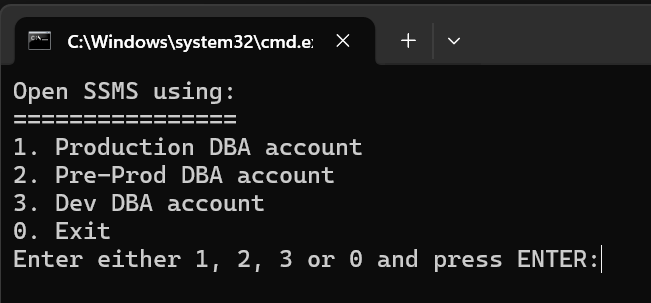
Once the batch file is running, you will get a menu as shown in the screenshot:
Type in the number corresponding to your choice and press Enter.
The batch file will now invoke the Runas command using your chosen account and prompts you to enter the password.
Type in the password and hit Enter.
Provided you entered the correct password, SSMS will launch successfully in the context of your chosen login.
The batch file will continue to run, and present you with the menu again – ready to launch another instance of SSMS when you need it. You can go back to the menu any time and chose a different option from the menu.
Enter 0 to exit the batch file.
Complete batch file code:
rem ***** SSMS Runas Launcher ***********
rem ***** Created by Vyas Kondreddi *****
rem ***** https://dutyDBA.com/ **********

@echo off
setlocal

rem ***** Update path and file name of SQL Server Management Studio below *****
set "SSMSPath=C:\Program Files\Microsoft SQL Server Management Studio 22\Release\Common7\IDE\SSMS.exe"

rem ***** Add your menu options below *****
:menu
cls
echo Open SSMS using:
echo ================
echo 1. Prod DBA account
echo 2. Pre-Prod DBA account
echo 3. Dev DBA account
echo 0. Exit

rem ***** Get user input *****
set /p choice=Enter either 1, 2, 3 or 0 and press ENTER:

rem ***** Process user input and proceed to opening SSMS in the chosen user context using runas *****
if /i "%choice%"=="1" (
    set "USER=ProdDomain\Vyas"
    goto OpenSSMS
)

if /i "%choice%"=="2" (
    set "USER=PreProdDomain\Vyas"
    goto OpenSSMS
)

if /i "%choice%"=="3" (
    set "USER=DevDomain\Vyas"
    goto OpenSSMS
)

if /i "%choice%"=="0" (
    goto End
)

rem ***** If no input or invalid input, go back to the menu and ask for valid input *****
goto menu

rem ***** Open SQL Server Management Studio *****
:OpenSSMS
runas /user:"%USER%" "%SSMSPath%"

if %errorlevel% NEQ 0 (
    Pause
)

set "choice=-1"
goto menu

:End
endlocalI hope this helps improve your productivity when it comes to quickly opening SQL Server Management Studio using different accounts. Share your thoughts by leaving a comment below.
