

I’ve always wanted an easy way to compare the server level settings of two SQL Server instances, identify and resolve the differences. Unfortunately, there is no built-in mechanism for comparing the server settings/configuration of two servers.
How have I compared SQL Server settings in the past?
Over the years, I’ve used a few different methods like below, to compare the server settings.
Those included creating a linked server between the two SQL Servers and querying the sp_configure (or sys.configurations) data over the linked server. This isn’t ideal, as a linked server is not always feasible due to double hop or SPN issues, or due to connectivity issues across domains between the two servers being compared – and you have to remember to drop the linked server once your’re done comparing.
I’ve also copied the output of sp_configure from both servers into an Excel spreadsheet and compared the data manually using formulae. Sometimes I’ve saved the sp_configure output to text/.csv files and compared them using tools like WinDiff or WinMerge. Again a cumbersome process for what is a simple requirement.
Why compare server settings in the first place?
There are various scenarios in the day to day DBA life, where it is necessary to compare server level settings. Here are some examples:
- Server migration: You’ve built a new SQL Server to replace an old one. You want to make sure the settings on the new server match the old one.
- Troubleshooting: You are facing a performance issue on one of your SQL Servers, but the rest of your SQL Servers are fine. You want to find out if the server configurationis any different on the problematic SQL Server.
- Keeping things consistent: You want to make sure all the nodes/replicas in your Always On Availability Group have the same settings. Its essential to to get consistent SQL Server behaviour and performance across all replicas.
- Prod vs Non-prod: You need the ability to compare server settings between your production and non-production environments (dev, test, UAT, pre-prod) following a new release.
Is there a better way to compare sp_configure/sys.configurations settings?
Yes, there is! I’ve decided its time to move on from the manual comparison process, and create something automated. PowerShell is my preferred choice for automating something like this.
I’ve created a one-click solution in PowerShell for comparing the sp_configure settings between two SQL Servers.
Here’s how the PowerShell script works:
- Its meant to be run in the PowerShell IDE interactively.
- You can run this script from anywhere, as long as you have connectivity to both servers being compared
- Just edit the values of the below three variables at the beginning of the script:
| $OldServer – Set this variable to the name of the old server (first SQL Server) |
| $NewServer – Set this variable to the name of the new server (second SQL Server) |
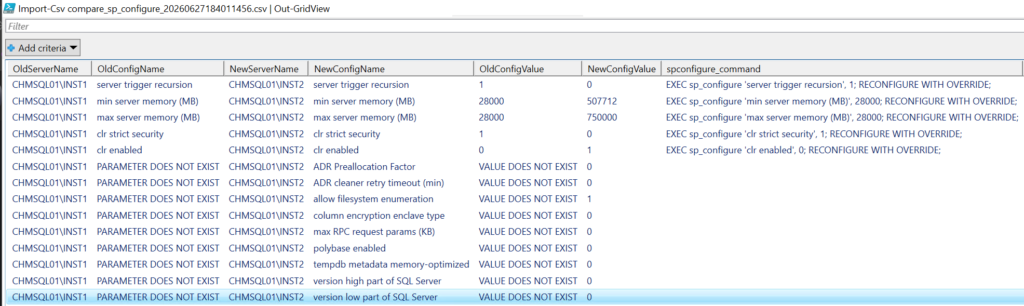
| $NoExcel – defaults to 0. Meaning, the output .csv file will be opened in Excel. If you don’t have Excel installed on the computer where you are running this PowerShell script, set this to 1 to open the output in a PowerShell Grid View. |
- Exceute the PowerShell script by clicking the Execute button or by pressing F5 on your keyboard
- The script connects to the first SQL Server, and reads the configuration values from sys.configurations DMV
- It then bulk copies those configuration values into a temporary table on the second SQL Server’s tempdb
- It compares the bulk copied first server’s data with sys.configurations of the second server locally
- Any defferences are written to a .csv file in the current folder where the PowerShell script is running from
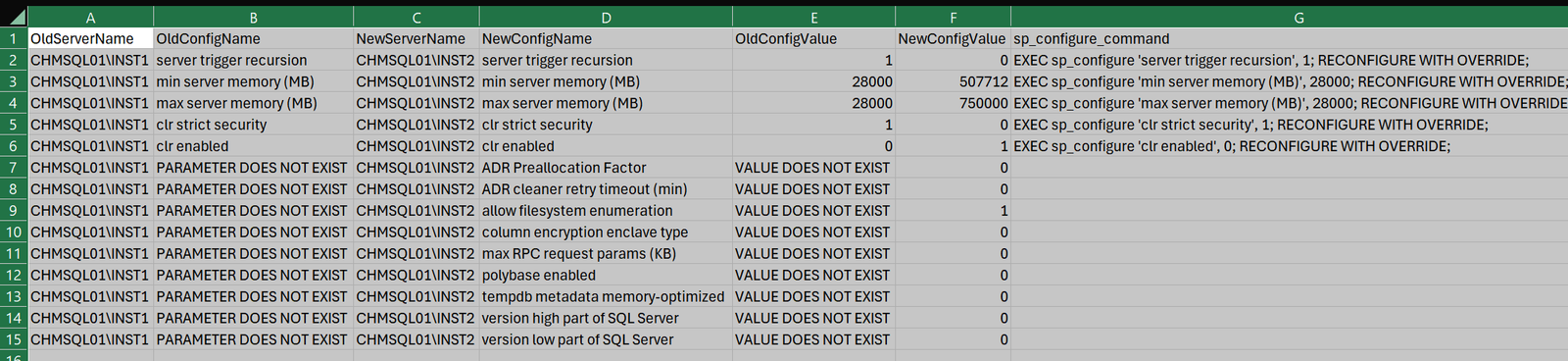
- PowerShell then automatically opens the .csv file in Excel for you to review the differences
- Don’t have Excel installed? Set $NoExcel variable to 1, and the .csv file will be opened in a PowerShell grid view
- The .csv file includes the sp_configure commands required to resolve the differences on the second server
- Copy the sp_configure commands from the .csv file, and run them on the second server to resolve the differences
- Remember to delete the .csv file from the local folder once you are done with the comparison
Note: If you compare sp_configure/sys.configurations settings across different versions of SQL Servers, you would notice that the newer version of SQL Server has additional parameters that do not exist on the older version of SQL Server. These would be identified as differences – however, no action is needed, as it is not possible to add those options to your older SQL Server.
Here’s the PowerShell script for comparing the server level settings (sp_configure and sys.configurations values) across two different SQL Servers. Hope you find this useful. Share your thoughts by leaving a comment below!
<#
    Created By: Vyas Kondreddi
    https://dutydba.com/

    Purpose:
    To compare server configuration of two SQL Servers and highlight the differences
#>

cls

# IMPORTANT: Change the values of the below three variable as needed

$OldServer = "CHMSQL01\INST1" # First or old server
$NewServer = "CHMSQL01\INST2" # Second or new server
$NoExcel = 0                  # 0 if you have Excel installed, so you can view the .CSV file.
                              # Set to 1, if you haven't got Excel. It will then open the output in grid view

# Converting server names to upper case to get around comparison issues on case sensitive servers
$OldServer = $OldServer.ToUpper()
$NewServer = $NewServer.ToUpper()

# Reading server configuration information from old server
# Querying sys.configurations DMV (sp_configure)
try
{
    $OldServerConnection = New-Object Data.SqlClient.SqlConnection ("Data Source = $OldServer; initial catalog = tempdb; Integrated Security = true")
    $OldServerConnection.Open()
    $OldServerCommand = $OldServerConnection.CreateCommand()
    $OldServerCommand.CommandText = "SELECT UPPER('$OldServer'), name, value_in_use FROM sys.configurations"
    $DataReader = $OldServerCommand.ExecuteReader()
}
catch
{
    Write-Host "ERROR: Failed to connect to server $OldServer or failed to execute the query" -ForegroundColor "Red" -BackgroundColor "Black"
    Write-Host "ERROR: *** $_.Exception.Message ***" -ForegroundColor "Red" -BackgroundColor "Black"
    return
}

# Connecting to new server
# Creating a temp table for storing configuration info from both servers, for comparison
$DestTempTable = "compare_sp_configure_{0:yyyyMMddHHmmssfff}" -f (Get-Date)

try
{
    $NewServerConnection = New-Object Data.SqlClient.SqlConnection ("Data Source = $NewServer; initial catalog = tempdb; Integrated Security = true")
    $NewServerConnection.Open()
    $NewServerCommand = $NewServerConnection.CreateCommand()
    $NewServerCommand.CommandText = "CREATE TABLE $DestTempTable (ServerName sysname, ConfigName nvarchar(70), ConfigValue sql_variant)"
    $NewServerCommand.ExecuteNonQuery() | Out-Null
}
catch
{
    Write-Host "ERROR: Failed to connect to server $NewServer or failed to execute the query" -ForegroundColor "Red" -BackgroundColor "Black"
    Write-Host "ERROR: *** $_.Exception.Message ***" -ForegroundColor "Red" -BackgroundColor "Black"
    return
}

# Bulk copying the sys.configurations (sp_configure) data from old server to new
try
{
    $BulkCopier = New-Object Data.SqlClient.SqlBulkCopy ($NewServerConnection)
    $BulkCopier.DestinationTableName = $DestTempTable
    $BulkCopier.WriteToServer($DataReader)
}
catch
{
    Write-Host "ERROR: Unable to bulk copy sys.configurations data from $OldServer to $NewServer" -ForegroundColor "Red" -BackgroundColor "Black"
    Write-Host "ERROR: *** $_.Exception.Message ***" -ForegroundColor "Red" -BackgroundColor "Black"
    return
}

#Comparing the configuration data from old and new server and working out differences
$NewServerCommand.CommandText = "
DECLARE @OldServer sysname = '$OldServer'
DECLARE @NewServer sysname = UPPER(@@SERVERNAME)

SELECT
    COALESCE(Old.ServerName, @OldServer) AS OldServerName,
    COALESCE(Old.ConfigName, 'PARAMETER DOES NOT EXIST') AS OldConfigName,
    COALESCE(New.ServerName, @NewServer) AS NewServerName,
    COALESCE(New.ConfigName, 'PARAMETER DOES NOT EXIST') AS NewConfigName,
    COALESCE(Old.ConfigValue, 'VALUE DOES NOT EXIST') AS OldConfigValue,
    COALESCE(New.ConfigValue, 'VALUE DOES NOT EXIST') AS NewConfigValue,
    CASE
        WHEN (Old.ServerName IS NOT NULL) AND (New.ServerName IS NOT NULL)
            THEN 'EXEC sp_configure ' + QUOTENAME(Old.ConfigName, '''')
                 + ', ' + CAST(Old.ConfigValue AS varchar(32))
                 + '; RECONFIGURE WITH OVERRIDE;'
        ELSE ''
    END AS sp_configure_command
FROM
(
    SELECT
        ServerName,
        ConfigName,
        ConfigValue
    FROM
        $DestTempTable
    WHERE
        ServerName = @OldServer
) AS Old
FULL OUTER JOIN
(
    SELECT
        @NewServer AS ServerName,
        name AS ConfigName,
        value_in_use AS ConfigValue
    FROM
        sys.configurations
) AS New
ON
    Old.ConfigName = New.ConfigName
WHERE
    (Old.ServerName IS NULL OR New.ServerName IS NULL)
    OR
    (Old.ConfigValue <> New.ConfigValue)
ORDER BY
    sp_configure_command DESC,
    NewConfigName ASC;
DROP TABLE $DestTempTable;
"

#Retrieving the outcome of the comparison of configuration data
try
{
    $NewSqlAdapter = New-Object System.Data.SqlClient.SqlDataAdapter
    $NewSqlAdapter.SelectCommand = $NewServerCommand
    $NewDataSet = New-Object System.Data.DataSet
    $RCTR = $NewSqlAdapter.Fill($NewDataSet)
    $TargetData = $NewDataSet.Tables[0]
}
catch
{
    Write-Host "ERROR: Failed to compare the sys.configurations values (sp_configure) on the new server $NewServer" -ForegroundColor "Red" -BackgroundColor "Black"
    Write-Host "ERROR: *** $_.Exception.Message ***" -ForegroundColor "Red" -BackgroundColor "Black"
    return
}

# Creating a .csv output file if differences are found
$RCTR = $TargetData.Rows.Count

if ($RCTR -eq 0) #($RCTR -eq 0)
{
    Write-Host "sp_configure values completely match between $OldServer and $NewServer" -ForegroundColor "White" -BackgroundColor "Black"
    Write-Host "No differences found!`n" -ForegroundColor "White" -BackgroundColor "Black"
}
else
{
    $DestTempTable += ".csv"
    Write-Host "$RCTR differences found in the sp_configure values between $OldServer and $NewServer" -ForegroundColor "Yellow" -BackgroundColor "Black"
    Write-Host "Remember to delete $DestTempTable from current folder once you are done with comparison " -ForegroundColor "Yellow" -BackgroundColor "Black"
    try
    {
        $NewDataSet.Tables[0] | Export-Csv $DestTempTable -NoTypeInformation -Append
        if ($NoExcel -eq 1)
        {
            Import-Csv $DestTempTable | Out-GridView
        }
        else
        {
            Invoke-Item $DestTempTable
        }
    }
    catch
    {
        Write-Host "ERROR: Failed to create the comparison output file $DestTempTable" -ForegroundColor "Red" -BackgroundColor "Black"
        Write-Host "ERROR: *** $_.Exception.Message ***" -ForegroundColor "Red" -BackgroundColor "Black"
        return
    }
}

# Closing down connections
$DataReader.Close()
$BulkCopier.Close()
$OldServerConnection.Close()
$NewServerConnection.Close()Here’s how the output looks like, if the output .csv files is opened in Excel (remember to expand the columns to see the full values inside the cells):
And here’s how the output looks inside PowerShell grid view if you don’t have Excel installed on the machine where you are running this script (in this case, remember to set $NoExcel to 1).